Google
 

Friday, May 4, 2007

Outlook: How to Recall a Sent Message

Have you ever clicked send on a message and then remembered that you forgot to attach that important file, or realized you put the wrong time down for a meeting? Outlook allows you the option of recalling a sent message. Here's how:

1. Go to the Sent Items folder.

2. Find the message you want recalled and double-click it.

3. Go to the Actions menu and select Recall This Message.

4. To recall the message:

Select Delete unread copies of this message.
(Note: the recipient needs to have Outlook opened for the message to be deleted)

To replace the message:

Select Delete unread copies and replace with a new message, click OK, and type your new message.

To be notified about the success of the recall or replacement:

Check the Tell me if recall succeeds or fails for each recipient check box.

5. Click OK.

How To Delay Sending A Message In Outlook

In some cases, you may want to delay sending a message in Outlook. normally, e-mail messages are sent immediately when you click the Send button in the Message window unless you aren't connected to the internet (then it will sit in your Outbox until you connect). You can delay sending the message by postponing the send date as follows:

In the Message window, Click the Options.

In the Message Options dialogue box, select Do Not Deliver Before check box, and choose the desired send date in the calendar drop-down and the desired time you want the message sent in the appropriate drop-down.

Click Close and Send.

Your message will go to the Outbox folder until the assigned date and time to send it.

XP: Small, Free Way to Use and Mount Images (ISO files) Without Burning Them

Microsoft has an unsupported virtual CD-ROM program. Why buy alcohol or Daemon Tools?

Alcohol and Daemon Tools are excellent software packages that allow users to mount ISO files as virtual CD-ROMs. Yes, there is a way to use that ISO without burning it to a disk.

Although I love these tools, Microsoft has a free, 60kb program that does the same thing! Of course, it is not supported... and it's not as friendly as the software listed above; however, it works and it's free.

Here's the download link:
winxpvirtualcdcontrolpanel

Here's the readme:

Quote:
Readme for Virtual CD-ROM Control Panel v2.0.1.1

THIS TOOL IS UNSUPPORTED BY MICROSOFT PRODUCT SUPPORT SERVICES


System Requirements
===================
- Windows XP Home or Windows XP Professional

Installation instructions
=========================
1. Copy VCdRom.sys to your %systemroot%\system32\drivers folder.
2. Execute VCdControlTool.exe
3. Click "Driver control"
4. If the "Install Driver" button is available, click it. Navigate to the %systemroot%\system32\drivers folder, select VCdRom.sys, and click Open.
5. Click "Start"
6. Click OK
7. Click "Add Drive" to add a drive to the drive list. Ensure that the drive added is not a local drive. If it is, continue to click "Add Drive" until an unused drive letter is available.
8. Select an unused drive letter from the drive list and click "Mount".
9. Navigate to the image file, select it, and click "OK". UNC naming conventions should not be used, however mapped network drives should be OK.

You may now use the drive letter as if it were a local CD-ROM device. When you are finished you may unmount, stop, and remove the driver from memory using the driver control.

Creating your own Bootable Windows XP CD-ROM and installing XP from boot disk

This recipe requires the following ingredients: Windows XP Professional Setup disc, Neroburn 5 or 6, Windows 98 Bootdisk, smartdrv.exe, FAT32 Parition to install XP on (REQUIRED, NTFS is not detected in DOS w/o appropriate software)

This recipe will explain how to make a copy of your windows xp bootable from cd. This requires a FAT32 Partition! NTFS partitions are not accessible with Win98 Bootdisk

First, you will need your copy of windows xp setup disk, a windows 98se floppy boot disk (go here to get one: http://www.bootdisk.com/ ), a copy of smartdrv.exe, and neroburn 5 or 6 installed.

Creating Bootable Windows XP Setupdisk
1. Copy the contents of your Windows XP Setupdisk to your PC's harddrive, be sure you copy ALL the files. (for our example, we'll copy them to c:\winxpboot\ )
2. Then copy the file: smartdrv.exe to this same folder (c:\winxpboot) (smartdrv.exe can be found with the windows 98 or on the web)
3. Open neroburn.
4. In the wizard or startsmart, go to Create Bootable Disc.
5. Put in the windows 98 boot disk floppy
6. Nero will ask for either the boot image locatoin or to use the Floppy, use the floppy. Then Click NEW.
7. Now go to the C:\winxpboot folder and copy all of the files on the CD project. and then Burn the disk, be sure to finalize the disk too!

Once it finishes, you will have a bootable windows xp disk. When it boots, it will boot up like when you put in the windows 98 floppy disk. Very helpful for installing OS when you don't have a floppy or want to bother with the floppy.


Installing XP from this Boot Disk:

1. First things first, go into your PC's BIOS and change the Boot Order, so your PC Boots your CD Drive first. Save your settings and put in your bootable XP disk we made.
2. It will boot to the Windows 98 Setup screen, click Boot with CD-ROM
3. Once it finishes going though setting up the cd drivers, and ramddrive, it will bring you back to a A:\ prompt.
4. If you have to create partitions or format the harddrive do so now.
5. Once the drives are ready, reboot again with the BIOS Settings as they were and the xp bootable disk in. Again, choose to Boot with CD-ROM.
6. Once at the A:\ again, go to the drive assocated with your CD (for example, the e drive) by typing e:

    -now you will be at a: e:\
    -now type: smartdrv
    -then type it again, it will hopefully show your C drive with disk cache enabled.

The reason i suggest using smartdrv when installing from dos is that it drastically improves file transfer speed and XP reommends it.

7. Now that smartdrv is enabled, we will want to start the installation process. We should still be at the E:\ prompt.
    -now type: CD i386
    the prompt should change to: E:\I386\
    -then type: winnt

8. This will start the Windows XP installation program.
Once it gets down copying files, it will tell you that you will need to reboot. Hit Enter to reboot.

NOTE!!!! When it is rebooting, we will need to be sure to go into the PC's BOIS Settings again and change the boot order so that the Harddrive is the first boot device or just remove the cd until the xp installation program starts again (since we have the cd set as the primary boot device and the cd is a bootable disk, we would just boot back into our bootdisk rather than the windows xp installation program that gets copied to the computers harddrive)

9. Now the rest of the windows xp installation will be like any other method.

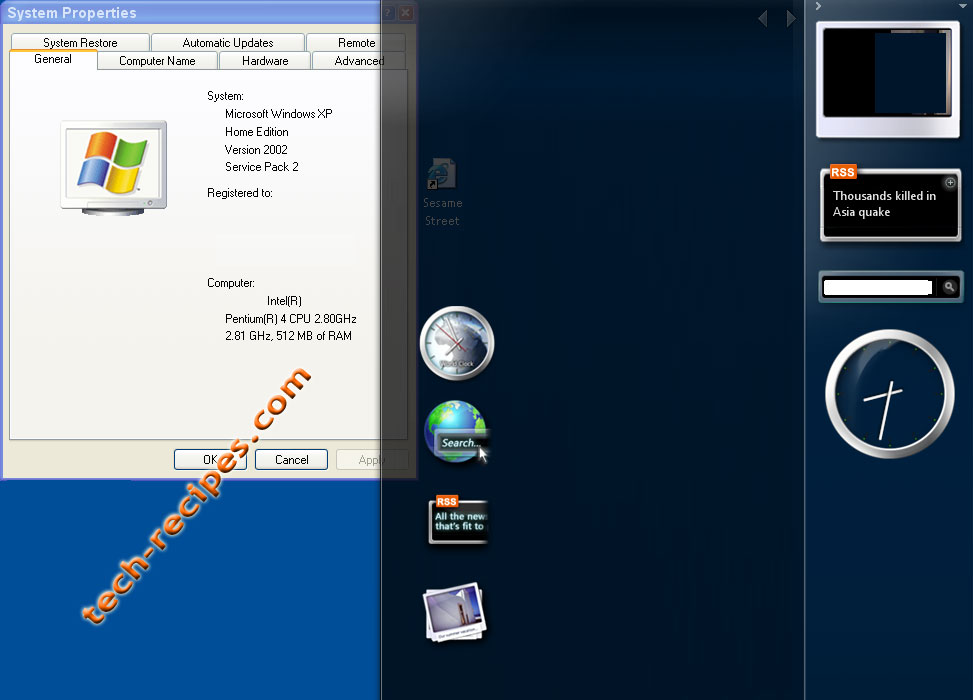
nstall the Vista / Longhorn Sidebar into XP

With a few modifications the vista sidebar has been hacked enough to get it to work with windows XP. Here are the directions.

First few steps ripped directly from davak's directions from Installing The Sidebar into Vista.

    1. Download the Vista Sidebar files
    2. Unrar the files
    3. Copy the Windows Sidebar folder into your Program Files folder. If C is your default Vista drive, the folder should end up here: C:\Program Files\Windows Sidebar
    4. Download the hacked patch files from RAFAEL.
    5. Uncompress them into the Windows Sidebar folder
    6. Click on the patch.exe in the Windows Sidebar folder
    7. Click OK to the sidebar.exe - File successfully patched! window
    8. You now need to put the xmlrw.dll into the Windows Sidebar folder. If you have IE7 installed, you can get it from there. If not, you can download it from this forum post. Place xmlrw.dll into your sidebar folder.
    9. Run \Program Files\Windows Sidebar\sidebar.exe
    10. When the sidebar opens, click the plus (+) to load the gadgets.


Props to Rafael for the hack and aeroxp.net for the rest of the files.

Install OSX Tiger on Intel Machines (or USB Drives) Using Only Windows Software

Many of the guides for installing OSX Tiger are complicated and use linux. You can install OSX using public-domain free windows only tools.

If you wish to install OSX tiger to your intel machine or usb drive, you can follow these few steps. Be careful because you can kill your hard drive if you are not careful.

You will need either a seperate hard drive (seperate partition will not do) or an external hard drive. Whatever extra hard drive you use will be completely replaced by osx and you will lose all information on that drive.

1. Authorized users should obtain the OSX files from Apple. It is illegal to obtain them from torrent sites by searching under the following keywords: "VMWare files for patched Mac OS X Tiger Intel"
2. Unrar these files to the root of your C: drive
3. Download Forensic Acquisition Utilities
4. Unzip these files and copy dd.exe to the root of c: drive as well

Note: the dd.exe program is used to write the image to your spare hard drive or external hard drive. The command is the following:

dd if=c:\tiger-x86-flat.img of=\\.\PhysicalDriveSomething

PhysicalDriveSomething should be replaced with your real physicaldrive (PhysicalDrive1, PhysicalDrive2, etc.). What your hard drives or usb drives are labelled is not always obvious. So I use WMI to figure this out. If you don't need it, don't get it. It's free... and it may prevent you from killing your wrong hard drive.

5. Download WMI Tools from Microsoft
6. Open WMI Browser Object
7. Allow block content and click the OKs until it loads
8. Select Win32_SystemPartitions.PartComponent in the left column
9. In the right column right-click on the drive device id (Disk #0, Partition #0, etc) and select Go to Object
10. The device window will open and click the associations tab
11. Exploring with this tool you should be able to match drive letters (Win32_LogicalDisk.DeviceID="C:") to each physicaldisk reference (Win32_DiskDrive.DeviceID="\\\\.\\PHYSICALDRIVE0")

Click for larger version:


12. Now that you know the physicaldrive label for your extra internal or external drive, you can drop to the root of your c: drive and run the command. Be sure to replace the physicaldrive text with the physical drive you determined above. If you use the wrong one, you will erase your primary hard drive.

dd if=c:\tiger-x86-flat.img of=\\.\PhysicalDrive

13. The command will appear to hang but you will notice your extra harddrive cranking away. It's going to do this for 15min to hours. Just let it run.
14. Once it is done, reboot and set the osx drive to your boot drive through your bios.
15. If your hardware is compatable, you should boot to OSX.

If you need to debug, I recommend these forums.

This wiki is also excellent:
http://wiki.osx86project.org/wiki/index.php/Main_Page

UNEASYsilence was one of the first to report on the OSX on intel hack... and is still a good source for updated news on the topic.

How Do I Use or Open Bin, Cue, or ISO Files?

People frequently get confused regarding these file types. Here's how to use these files.

    *.bin
    *.cue
    *.iso

    These file extensions are commonly used to show that a file is an image of a CD or DVD.

    The most simple way to access these files is to use your CD or DVD Burner to burn them to a disk. Nero is a common program that is used to burn bin/cue files to hard media.

    One really nice thing to do is to treat these files as a virtual CD or DVD without ever burning them. Daemon Tools is one program that is often used to do this. Microsoft now has a free program that does this as well.

    The other place that *.bin files are frequently used are in emulation software. Gaming roms are often stored in compressed files full of bin files. If you have a zip file full of *.bin files, try Mame or some similiar emulator.