Google
 

Friday, May 4, 2007

Outlook: How to Recall a Sent Message

Have you ever clicked send on a message and then remembered that you forgot to attach that important file, or realized you put the wrong time down for a meeting? Outlook allows you the option of recalling a sent message. Here's how:

1. Go to the Sent Items folder.

2. Find the message you want recalled and double-click it.

3. Go to the Actions menu and select Recall This Message.

4. To recall the message:

Select Delete unread copies of this message.
(Note: the recipient needs to have Outlook opened for the message to be deleted)

To replace the message:

Select Delete unread copies and replace with a new message, click OK, and type your new message.

To be notified about the success of the recall or replacement:

Check the Tell me if recall succeeds or fails for each recipient check box.

5. Click OK.

How To Delay Sending A Message In Outlook

In some cases, you may want to delay sending a message in Outlook. normally, e-mail messages are sent immediately when you click the Send button in the Message window unless you aren't connected to the internet (then it will sit in your Outbox until you connect). You can delay sending the message by postponing the send date as follows:

In the Message window, Click the Options.

In the Message Options dialogue box, select Do Not Deliver Before check box, and choose the desired send date in the calendar drop-down and the desired time you want the message sent in the appropriate drop-down.

Click Close and Send.

Your message will go to the Outbox folder until the assigned date and time to send it.

XP: Small, Free Way to Use and Mount Images (ISO files) Without Burning Them

Microsoft has an unsupported virtual CD-ROM program. Why buy alcohol or Daemon Tools?

Alcohol and Daemon Tools are excellent software packages that allow users to mount ISO files as virtual CD-ROMs. Yes, there is a way to use that ISO without burning it to a disk.

Although I love these tools, Microsoft has a free, 60kb program that does the same thing! Of course, it is not supported... and it's not as friendly as the software listed above; however, it works and it's free.

Here's the download link:
winxpvirtualcdcontrolpanel

Here's the readme:

Quote:
Readme for Virtual CD-ROM Control Panel v2.0.1.1

THIS TOOL IS UNSUPPORTED BY MICROSOFT PRODUCT SUPPORT SERVICES


System Requirements
===================
- Windows XP Home or Windows XP Professional

Installation instructions
=========================
1. Copy VCdRom.sys to your %systemroot%\system32\drivers folder.
2. Execute VCdControlTool.exe
3. Click "Driver control"
4. If the "Install Driver" button is available, click it. Navigate to the %systemroot%\system32\drivers folder, select VCdRom.sys, and click Open.
5. Click "Start"
6. Click OK
7. Click "Add Drive" to add a drive to the drive list. Ensure that the drive added is not a local drive. If it is, continue to click "Add Drive" until an unused drive letter is available.
8. Select an unused drive letter from the drive list and click "Mount".
9. Navigate to the image file, select it, and click "OK". UNC naming conventions should not be used, however mapped network drives should be OK.

You may now use the drive letter as if it were a local CD-ROM device. When you are finished you may unmount, stop, and remove the driver from memory using the driver control.

Creating your own Bootable Windows XP CD-ROM and installing XP from boot disk

This recipe requires the following ingredients: Windows XP Professional Setup disc, Neroburn 5 or 6, Windows 98 Bootdisk, smartdrv.exe, FAT32 Parition to install XP on (REQUIRED, NTFS is not detected in DOS w/o appropriate software)

This recipe will explain how to make a copy of your windows xp bootable from cd. This requires a FAT32 Partition! NTFS partitions are not accessible with Win98 Bootdisk

First, you will need your copy of windows xp setup disk, a windows 98se floppy boot disk (go here to get one: http://www.bootdisk.com/ ), a copy of smartdrv.exe, and neroburn 5 or 6 installed.

Creating Bootable Windows XP Setupdisk
1. Copy the contents of your Windows XP Setupdisk to your PC's harddrive, be sure you copy ALL the files. (for our example, we'll copy them to c:\winxpboot\ )
2. Then copy the file: smartdrv.exe to this same folder (c:\winxpboot) (smartdrv.exe can be found with the windows 98 or on the web)
3. Open neroburn.
4. In the wizard or startsmart, go to Create Bootable Disc.
5. Put in the windows 98 boot disk floppy
6. Nero will ask for either the boot image locatoin or to use the Floppy, use the floppy. Then Click NEW.
7. Now go to the C:\winxpboot folder and copy all of the files on the CD project. and then Burn the disk, be sure to finalize the disk too!

Once it finishes, you will have a bootable windows xp disk. When it boots, it will boot up like when you put in the windows 98 floppy disk. Very helpful for installing OS when you don't have a floppy or want to bother with the floppy.


Installing XP from this Boot Disk:

1. First things first, go into your PC's BIOS and change the Boot Order, so your PC Boots your CD Drive first. Save your settings and put in your bootable XP disk we made.
2. It will boot to the Windows 98 Setup screen, click Boot with CD-ROM
3. Once it finishes going though setting up the cd drivers, and ramddrive, it will bring you back to a A:\ prompt.
4. If you have to create partitions or format the harddrive do so now.
5. Once the drives are ready, reboot again with the BIOS Settings as they were and the xp bootable disk in. Again, choose to Boot with CD-ROM.
6. Once at the A:\ again, go to the drive assocated with your CD (for example, the e drive) by typing e:

    -now you will be at a: e:\
    -now type: smartdrv
    -then type it again, it will hopefully show your C drive with disk cache enabled.

The reason i suggest using smartdrv when installing from dos is that it drastically improves file transfer speed and XP reommends it.

7. Now that smartdrv is enabled, we will want to start the installation process. We should still be at the E:\ prompt.
    -now type: CD i386
    the prompt should change to: E:\I386\
    -then type: winnt

8. This will start the Windows XP installation program.
Once it gets down copying files, it will tell you that you will need to reboot. Hit Enter to reboot.

NOTE!!!! When it is rebooting, we will need to be sure to go into the PC's BOIS Settings again and change the boot order so that the Harddrive is the first boot device or just remove the cd until the xp installation program starts again (since we have the cd set as the primary boot device and the cd is a bootable disk, we would just boot back into our bootdisk rather than the windows xp installation program that gets copied to the computers harddrive)

9. Now the rest of the windows xp installation will be like any other method.

nstall the Vista / Longhorn Sidebar into XP

With a few modifications the vista sidebar has been hacked enough to get it to work with windows XP. Here are the directions.

First few steps ripped directly from davak's directions from Installing The Sidebar into Vista.

    1. Download the Vista Sidebar files
    2. Unrar the files
    3. Copy the Windows Sidebar folder into your Program Files folder. If C is your default Vista drive, the folder should end up here: C:\Program Files\Windows Sidebar
    4. Download the hacked patch files from RAFAEL.
    5. Uncompress them into the Windows Sidebar folder
    6. Click on the patch.exe in the Windows Sidebar folder
    7. Click OK to the sidebar.exe - File successfully patched! window
    8. You now need to put the xmlrw.dll into the Windows Sidebar folder. If you have IE7 installed, you can get it from there. If not, you can download it from this forum post. Place xmlrw.dll into your sidebar folder.
    9. Run \Program Files\Windows Sidebar\sidebar.exe
    10. When the sidebar opens, click the plus (+) to load the gadgets.


Props to Rafael for the hack and aeroxp.net for the rest of the files.

Install OSX Tiger on Intel Machines (or USB Drives) Using Only Windows Software

Many of the guides for installing OSX Tiger are complicated and use linux. You can install OSX using public-domain free windows only tools.

If you wish to install OSX tiger to your intel machine or usb drive, you can follow these few steps. Be careful because you can kill your hard drive if you are not careful.

You will need either a seperate hard drive (seperate partition will not do) or an external hard drive. Whatever extra hard drive you use will be completely replaced by osx and you will lose all information on that drive.

1. Authorized users should obtain the OSX files from Apple. It is illegal to obtain them from torrent sites by searching under the following keywords: "VMWare files for patched Mac OS X Tiger Intel"
2. Unrar these files to the root of your C: drive
3. Download Forensic Acquisition Utilities
4. Unzip these files and copy dd.exe to the root of c: drive as well

Note: the dd.exe program is used to write the image to your spare hard drive or external hard drive. The command is the following:

dd if=c:\tiger-x86-flat.img of=\\.\PhysicalDriveSomething

PhysicalDriveSomething should be replaced with your real physicaldrive (PhysicalDrive1, PhysicalDrive2, etc.). What your hard drives or usb drives are labelled is not always obvious. So I use WMI to figure this out. If you don't need it, don't get it. It's free... and it may prevent you from killing your wrong hard drive.

5. Download WMI Tools from Microsoft
6. Open WMI Browser Object
7. Allow block content and click the OKs until it loads
8. Select Win32_SystemPartitions.PartComponent in the left column
9. In the right column right-click on the drive device id (Disk #0, Partition #0, etc) and select Go to Object
10. The device window will open and click the associations tab
11. Exploring with this tool you should be able to match drive letters (Win32_LogicalDisk.DeviceID="C:") to each physicaldisk reference (Win32_DiskDrive.DeviceID="\\\\.\\PHYSICALDRIVE0")

Click for larger version:


12. Now that you know the physicaldrive label for your extra internal or external drive, you can drop to the root of your c: drive and run the command. Be sure to replace the physicaldrive text with the physical drive you determined above. If you use the wrong one, you will erase your primary hard drive.

dd if=c:\tiger-x86-flat.img of=\\.\PhysicalDrive

13. The command will appear to hang but you will notice your extra harddrive cranking away. It's going to do this for 15min to hours. Just let it run.
14. Once it is done, reboot and set the osx drive to your boot drive through your bios.
15. If your hardware is compatable, you should boot to OSX.

If you need to debug, I recommend these forums.

This wiki is also excellent:
http://wiki.osx86project.org/wiki/index.php/Main_Page

UNEASYsilence was one of the first to report on the OSX on intel hack... and is still a good source for updated news on the topic.

How Do I Use or Open Bin, Cue, or ISO Files?

People frequently get confused regarding these file types. Here's how to use these files.

    *.bin
    *.cue
    *.iso

    These file extensions are commonly used to show that a file is an image of a CD or DVD.

    The most simple way to access these files is to use your CD or DVD Burner to burn them to a disk. Nero is a common program that is used to burn bin/cue files to hard media.

    One really nice thing to do is to treat these files as a virtual CD or DVD without ever burning them. Daemon Tools is one program that is often used to do this. Microsoft now has a free program that does this as well.

    The other place that *.bin files are frequently used are in emulation software. Gaming roms are often stored in compressed files full of bin files. If you have a zip file full of *.bin files, try Mame or some similiar emulator.

Make XP look like Windows Vista / Longhorn for free!

Change your boring old Windows XP theme to look like Vista using MSStyles (no shell-packs!) for free! Plus you don't need to download any software to do it either (so your computer won't get messed up!). You can do it all by yourself and when you are done it is surely going to look like Windows Vista.

Steps: 1. Theme 2. Wallpaper 3. Cursor 4. Vista-ish applications 5. Fine Tuning 6. Shell Packs 7. Sidebar 8. Final Result

Changing the XP theme
First make sure that you have patched up your uxtheme.dll file. So go read my other recipe if you haven't so already. This recipe also tells you how to change your themes.

Now you are ready to do some downloading.

There are many msstyles themes out there that look super cool and look like vista/longhorn. You can also get shell packs and windows blinds themes but some people claim that this can mess up your computer badly.
The theme that I found works best is VistaXP by -kol! (but it was so popular that MS got it removed). Just go to the comments section to find themes you can download. These themes will make your computer look like Windows Vista for sure. So... go ahead and download it.
Then unzip or copy it to C:\WINDOWS\Resources\Themes

All right now you can change your computers theme to the Vista theme you chose.

Changing the Wallpaper
There are lots of Vista wall papers available... chances are that you have one included with your theme as well. If you don't then you can try your luck at WinMatrix's great post for Vista wallpapers. If not then you can always search on Google for Vista Wallpapers.

If you want you can also get this wallpaper which also a CoolGrass wallpaper by ApacheUser plus it has the Windows Vista logo on it!

Changing the cursor
You can download the aero cursor pack over here. Just read the read me file supplied and enjoy. Additionally, you can go to How to change your mouse pointers article and change your mouse pointer to the 3D-White (system scheme), it looks very similar to the original cursor in Vista.

Getting Vista-ish applications
Now once you are done that. And you like some transparency on your computer get these two very cool tools.

Vista Explorer: Something like the original Vista explorer but for XP and plus it has..... transparency. YES! IT IS TRANSPARENT! Just like the original one.
Internet Explorer (transparent version!): This is also very similar to the real internet explorer. Plus the internet explorer button on the task bar says internet explorer 7 (good for fooling people)! You can also get the real IE 7 (no transparency though)

Now your system should look like Vista for sure, but why stop when you have come so far?

Get the Alt-Tab Replacement PowerToy! This shows you the windows you are switching to (sort of something like in the real windows vista)...


Fine tuning
After that, fine tune your font settings and turn on ClearType fonts with the ClearType Tuner PowerToy (you can also do this online). Since the real Vista uses the font 'Segoe UI' which is a cleartype font, you can mimic the real fonts by using ClearType.

However, some themes already come with the Segoe UI font so don't forget to enable it while you are using it.

Shell Packs
If you really want to get shell packs to do what you can already do on your own then here are some of them:
- Vista Customization pack by JoeJoe
- The brico pack by CrystalXP
- The Windows X longhorn Transformation pack by Windows X

Please keep in mind that the shell packs don't customize your computer to look like the latest Vista/Longhorn builds, so your computer might not look like the recent Vista screenshots.

The Vista Sidebar
Go to AlexTheBeast's tutorial on how to Install the Vista/Longhorn Sidebar into XP and put that on your computer too.

And when you are done that you can start celebrating! In fact you can claim that you have Windows Vista already, and nobody will doubt you. One last step enjoy and don't forget to show-off your new look!

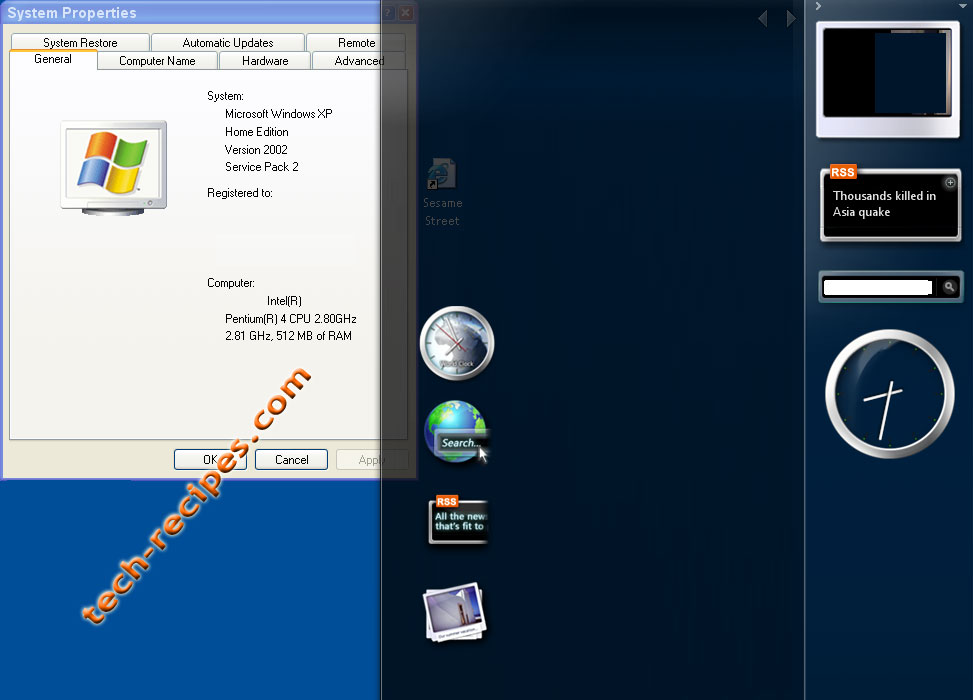
Take a look at these screenshots of how your PC will look once you are done. If I didn't put that System Properties window up there then I'm sure I could have fooled you too!

note: I haven't included a screenshot with the longhorn sidebar. If you want to view a screenshot of it then please go to Go to AlexTheBeast's recipe.


Screenshots:

Things I used in these screenshots: The YAFVC3 VS (and all the things included in the download, wallpaper from Winmatrix and icons for recycle bin and my computer from modified version of explorer found in YAFVC theme (install modified explorer.exe > right click on desktop > properties > desktop tab > customize desktop > change icon > type in 'C:\WINDOWS\explorer.exe' > select icon > OK).

Hacks to Beat Rapidshare Download Limits and Waiting Time

Here are some hints to help you more efficently use rapidshare. Skipping waiting time and bypassing download limits are rapidshare hacks that everybody should know.

Rapidshare has been an excellent tool for sharing large files. Recently users have discovered ways of bypassing the download limits and skipping the waiting time. Here are a description of these methods.

Update: Two new methods of bypassing download limits have been posted. These are more advanced and may require additional software or hardware, but you should check them out when you are done with these easier methods:

RapidShare: NIC tricks and MAC cloning to bypass download limit

Rapidshare traces the users IP address to limit each user to a certain amount of downloading per day. To get around this, you need to show the rapidshare server a different IP address.

Here are some methods for doing this:

1. Short-Out the JavaScript:

    1. Goto the page you want to download
    2. Select FREE button
    3. In the address bar put the following: javascript:alert(c=0)
    4. Click OK
    5. Click OK to the pop-up box
    6. Enter the captcha
    7. Download Your File


2. Request a new IP address from your ISP server.
    Here's how to do it in windows:
    1. Click Start
    2. Click run
    3. In the run box type cmd.exe and click OK
    4. When the command prompt opens type the following. ENTER after each new line.
    ipconfig /flushdns
    ipconfig /release
    ipconfig /renew
    exit


    5. Erase your cookies in whatever browser you are using.
    6. Try the rapidshare download again.

    Frequently you will be assigned a new IP address when this happens. Sometime you will, sometimes you will not. If you are on a fixed IP address, this method will not work. To be honest, I do not know how to do this in linux/unix/etc. If this works for you, you may want to save the above commands into a batch file, and just run it when you need it.


3. Use a proxy with SwitchProxy and Firefox:

4. Use an anonymous service:
    Running your system through the tor network should in theory work; however, it is difficult to use and setup. Plus, you allow others to run their evil deeds through your system as well by using this system. Anonymizer 2005 is inexpensive, easy to use, but not free. Other pay services would likely work as well.
5. You can use a bookmarklet to stop your wait times:
    1. Open IE
    2. Right Click On This Link
    3. Select Add to Favorites
    4. Select Yes to the warning that the bookmark may be unsafe.
    5. Name it "RapidShare No Wait"
    6. Click on the Links folder (if you want to display it in your IE toolbar)
    7. Click OK
    8. You may need to close and reopen IE to see it
    9. Goto rapidshare and click the bookmarklet when you are forced to wait

Google: Search College Networks for Open Directories Free Music and Video Files

Alteration of techrx's famous mp3 google search. This modification allows you to search focused networks for audio or video files.

College networks are famous for their amount of audio and video files kept on their servers. Thanks to a random forum post I decided to search my college network for free stuff. I was pretty surprised.

In typical techrx style, I'll try to explain my steps so you can improve on the recipe. Here's my search string that will search all edu sites for mp3 files:


This isolates directories only...

-inurl:htm -inurl:html intitle:"index of" "Last modified"


This searches only educational sites. You can change this to a particular college if you want focus your search.

site:edu


This obviously searches for mp3s. You can change this to avi or mpg if you want to search for video files.

mp3


Searching all educational sites for video files:


Here I decided to search my neck of the woods...

Google Talk: Run Multiple Instances or Login as Multiple Users

f you have several google talk accounts, you may want to run multiple instances of google talk at once. Here's how to do it.

Many users, including myself, like to have several different personalities on IM--Work, play, etc. By default google talk with only allow you to run instance of the program at a time. Here's how to get around that...

Run google talk with the following switch: /nomutex

If you installed google talk to the default location, you can easily create a shortcut to this setting.

    1. Right-click on the desktop
    2. Select New
    3. Select Shortcut
    4. Paste this into the text box:
    "c:\program files\google\google talk\googletalk.exe" /nomutex


    5. Click Next6. Name it whatever: Google Talk Multiple, etc.
    7. Click OK until you are done.

Check Google E-Mail (Gmail) from an RSS Feed

If you have an RSS reader, you can keep up with your gmail through a feed.

Gmail is sweet. If you are like me and use a gmail account as your secondary email, you probably don't want to log-in through the web and check it throughout the day.

Just check for new email through your RSS feed reader!

Here is the URL to your gmail RSS Feed:

    https://USERNAME:PASSWORD@gmail.google.com/gmail/feed/atom

Just replace USERNAME and PASSWORD with your own case-sensitive user/pass combo. If you are using a web-based RSS-feed reader, remember to set these feed as private of your user/pass combo will be viewable by the public.

Update:

Edit: Google recently renamed it's sites... please use this instead... https://mail.google.com/gmail/feed/atom

GMail: Illegal Attachment Causes Bounced Messages when Sending EXE files

Certain files are not allowed to be sent through gmail. Here is how to get through this restriction.

Google has blocked the sending of certain types of files through gmail that have high abuse potential. This will be noticed mainly when uses try to send executable files such as *.exe files or archive files (*.zip) containing executable files.

If you try, you'll email will bounce and you will receive an error like this:

: host gmail-smtp-in.l.google.com[64.233.xxx.xx] said: 552
5.7.0 Illegal Attachment 38si976657nzk


If you need to do this anyway, you just need to rename your file to something that is not blocked. I typically rename everything to *.bak. Be sure to tell the receiver of your email to rename it once they receive it.

Renaming files can be tricky because windows hides the file extensions by default. Here's how to rename them:

    1. Open explorer and browse to the file you want to rename
    2. Click the Tools menu
    3. Click Folder Options
    4. Click View tab
    5. Uncheck Hide extensions for known file types
    6. Click OK
    7. Now you should be able to see the extensions of your files.
    8. Right-click on the file
    9. Click Rename
    10. Rename the file and change the ending. For example, putty.exe to putty.bak.
    11. Now you can send it through gmail like any other attachment
    12. The receiver of the email will need to rename it back so he/she/it can use the file correctly.


Point them to this recipe if your email reciever needs assistance.

Use Google to Find Free Video Files (avi, mpg,wmv)

Google is great. Find those hidden directories just full of video files. This will search for avi, mpg, and wmv files.

AlexTheBeast's recipe regarding using google to find music files recipe is so popular... I thought I would follow-up with a lesson on using google to find free video files.

(AlexTheBeast got a gift certificate, t-shirt, and mug for submitting such a great recipe! Congrats!)

We'll use the same trick to find open directories. This should find open directories full of video files.


Just add additional search terms on the end if you want to focus your search. Say you wanted to find some starwars clips:


If you want to focus your search further you can even add more and more search terms to limit it to directories:

Google Desktop Search Tool: How to Delete Your Index and History

Google desktop search tool is great... sometimes too good! If the tool indexes something you do not want, here's how to get rid of it.

Now you can use google to search all the files on your computer. Freaking awesome! You can download it here:

http://desktop.google.com/

Suddenly, you can find all files on your computer with a quick search. Oppps! Suddenly, anybody who is using your computer can do a quick search and find a ton of juicy stuff. Scary, huh?

There are ways to hide certain directories from google that are easy enough; however, manually deleting things from a google search is not easy.

Here's the best way to handle this.

Here's how to delete the index. Delete all the files in this folder:
C:\Documents and Settings\username\Local Settings\Application Data\Google\Google Desktop Search
(where username is your actual username)

Now this will delete your entire google desktop search index. After you do it, you will find nothing in your google search. Uninstall and reinstall the desktop tool.

Next, set your directories that you don't want google to search...

That way, you can set your "pron" directory to "do not search" and all your pron or whatever will not be indexed.

Search Google from Your Cell Phone Using SMS

Find the nearest gas station or diner... find the definition of a word or a do a calculation. Now you can access the power of google using sms without the internet.

Send all your google SMS messages to 46645 (this corresponds to GOOGL on your phone.) The text that is in this message will determine what information you get in return. Google doesn't care about case so you can type in upper or lower case.

    For general help information about the service send help

    To find out prices for a product send F, price, or prices and then the product name. Examples..
      F hp photosmart 1215
      Roland Ma-8 prices
      Adobe Photoshop price

    To define a word preface it with D or define. Examples...
      D bronchoscopy
      define fizzle

    To find local businesses, type the store name and either the state/city or the zipcode. Use a period between the business name and location. Examples...
      starbucks.27713 will show you the Starbucks in the 27713 zip code
      hospital.durham nc will tell you the hospitals near durham, nc

    If you want to do a google search and see what google returns, you can preface a search with G. You will not be able to follow links but you can often find your answer just from the short information google returns. For example, this will likely give you what you need...
      G default linksys router password admin

    Google will also do calculations...
      half a cup in teaspoons
      34/6

    Google will keep you happy with zip codes and area code look-ups...
      601
      38829


Try it out! Further information can be found here:
http://www.google.com/sms/faq.html

Google: Free Adsense Charts

Wanna see your adsense data graphed? This site will give you the power.

I love google adsense. Love it.

My one beef with it has always been that it does not give you good ways to visualize the data it collects regarding your site.

One cool little page now will quickly do this for you:
http://www.adsensecharts.com

    1. Log into your adsense account
    2. Pull up a report containing your entire adsense history
    3. Hit CTRL-A to select the entire page
    4. Hit CTRL-C to copy the entire page into the clipboard
    5. Open adsensecharts
    6. Click in textbox on the adsensecharts page
    7. Hit CTRL-V to paste your adsense information into the textbox
    8. Hit the generate my AdSense charts button
    9. Click the various links under the chart to display the information in different ways

Google: Find Free MP3s, WMAs, OGGs, and Other Music Files

People leave music files in unprotected directories all of the time. Here's how to get to them. Come get your free mp3s.

We all need music. If you properly query google, you can find open indexes of music files easily. Here are some hints to get you started.

Google: -inurl:htm -inurl:html intitle:"index of" "Last modified" mp3

    Using this string we are using the "index of" and the inurl commands to attempt to isolate directories only. The mp3 tag on the end tells google to look for mp3s in these open directories. You can change this to wma or ogg if you wish.


You can add additional search criteria to focus your search more.

Google: -inurl:htm -inurl:html intitle:"index of" mp3 "pearl jam"
    This command will find open directories with mp3 files with Pearl Jam. Obviously you can change the band name or file type to better define your search.

Have fun. Share interesting google queries in the comments below.

If you like this, you might like these recipes as well:
- Use Google to Find Free eBooks (Electronic Books)
- Google: Search for Public Online Cameras and Video Feeds

Anonymously do Whois, Traceroute, Reverse Lookup, DNS Records, and Ping

Google gives you a quick way to find and use anonymously use these network query tools.

Everybody needs these webtools. Whois, traceroute, reverse lookup, ping, etc -- all of these give a lot of helpful information regarding a site. If you are doing "security" work, you might even want to be able to do this anonymously. Here is how to find installed network query tools.

Google: inurl:nqt.php intitle:”Network Query Tool” +whois

This search will open up tons of installed network query tool installations.

Google: Search for Public Online Cameras and Video Feeds

Using google it is very easy to find open cameras and video feeds online. A voyeur's paradise!

Using some focused google searching, you can find online cameras and video feeds with ease. Here are some common examples.

Calculator Google

Use Google as a calculator

Google now will do several calculator type functions.

Basic arithmetic:
Google: 1+2

Trig:
cos(1/2)

Factorials:
25!

Convert/calculate in different bases such as binary, octal, hex, and decimal:
Google: 32 in binary

Google knows constants:
e
pi
Planck's Constant
Speed of Light
Gravitational Constant
Avogadro's Number
Radius of the Earth
Radius of the Sun
Mass of the sun plus the mass of the earth

Google does conversions:
I've noticed that it at least knows these --feet, inches, miles, meters, light years, pints, quarts, tablespoons, teaspoons, gallons, liters, grams, pounds, angstroms and the associated metric prefixes such as centi, kilo, etc.
Google: 4 tons in decigrams

What else have you discovered?

Google Boolean and Advanced Searching

Tutorial in the use of boolean searching with Google.

Dictionary.com gives the definition of Boolean:
Of or relating to a logical combinatorial system treating variables, such as propositions and computer logic elements, through the operators AND, OR, NOT, and XOR: a browser that supports Boolean searches.

AND
With AND google tries to find all the words listed.
Google searching defaults to AND. Therefore...
- Google: tech-recipes hacks hints
is the same as...
- Google: tech-recipes AND hacks AND hints

OR
With OR google will search for either of the terms. For example...
- Google: "North Carolina" OR university OR college
The "|" symbol is treated the same as OR by Google. Thus, this search would yield the same.
- Google: "North Carolina" | university | college

If you are sure you want to include one term but also want to include a choice of other terms, you can group your search. For example, the search below is much more powerful search that the similar OR search above. This will look for North Carolina universities or North Carolina colleges:
- Google: "North Carolina" (university OR college)

- (Minus Sign)
The minus will exclude terms from your search. If you want North Carolina colleges but you don't want to read about Duke:
- Google: "North Carolina" university -Duke

"" (Quotation Marks)
As noted above, if you want to search for an exact phrase such as "North Carolina," you enclose the phrase in quotation marks.
Google: "North Carolina" yields much more directed searches than Google: North Carolina

Further information can be found at the Google Advanced Search Page.

Google as a Phonebook

Google can look up address, phone numbers, and do reverse lookups

To use google as a phonebook, type the following into google:
firstname lastname, State

For example...

Google: George Bush, TX

Reverse lookup is easy as well... you input the phone number into google.

Google: (512) 637-2000

Thursday, May 3, 2007

Google Calendar: Receive Event Notifications through SMS

Learn how to integrate your mobile device or cellular phone with google calendar through SMS.

First Register Your Phone/Mobile Device Number:


1. Log in to Google Calendar

2. Click Settings link in the upper right corner


3. Click Notifications tab

4. Input your phone number and select your carrier

5. Click Send Verification Code

6. Receive the SMS message on your phone

7. Insert your verification code and click Finish Setup

8. Your phone is now registered


Select what Notifications you want on your cell phone/mobile device:


From the Setting Link / Notifications tab, select what events you would like reported to your phone through SMS. Just click the SMS checkbox under the Choose how you would like to be notified: section.

Google Spreadsheets: Placing a Hyperlink in a Cell

Google Spreadsheets allows hyperlinks to be placed into the cells of your spreadsheet. You can either display the entire URL or use a simple title for the link, just follow this tech-recipe:

To display the entire URL:


Simply type the URL into the cell. When this cell is selected, an icon will appear. Clicking on the icon will take the viewer to the URL in a new window.


To display a title instead of the URL:


You will need to use a formula to display the title.


=hyperlink("URL","title")

(example: =hyperlink("khobauit.blogspot.com","CNTT")

View GPX Track / Path on Google Earth from GPS

After a long hike, I like to share my trails with my friends and family -- virtually. Google Earth makes it very easy to show others exactly where you have been.

I love to hike; however, it is a difficult hobby to share with others. With pictures alone, it is difficult to share the magnitude of a lengthy hike or the great distance taken. Using Google Earth, this is actually very simple.


1. While on your hike, enable the Track or Path feature in your GPS

2. After your hike is over, export your travels as a GPX file onto your computer.

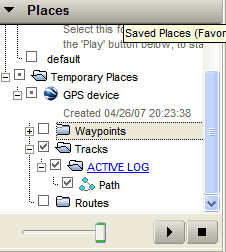
3. Drag the .gpx file onto Google Earth. It will appear under the Temporary Places section.

4. Make sure the Tracks and Path sections are enabled as in the flickr picture below. You can decide here if you want your saved waypoints to show as well.


gpx_google_earth_1


5. Double dlick on that same Path link and google earth will swing around to the location of your path.

6. If the path does not appear, slide the Timebar at the very top of the screen to the date of your hike.


google_earth_gpx_path_1


7. With your hike on your screen, you are now free to give a virtual tour of your adventure.


Here's a flickr example of a path below:


google_earth_gpx_path


Word 2007: Edit Your Document While In Print Preview

Have you ever been ready to print a document but when you used Print Preview to review how it will look, you found something that needed to be changed? Instead of exiting out of Print Preview to edit your document, you can make your changes while you are still in Print Preview.

1. While viewing your document in Print Preview, go to the Ribbon.

2. In the Preview section, uncheck the Magnifier checkbox.

3. The Magnifier cursor will change to a Text Select icon. Make the changes to your document and print.

4. Click Close Print Preview from the Ribbon.

5. Save your document to keep the changes you made.

Outlook 2007: Disable Deleting of Meeting Request from Inbox When Responding

By default, Outlook deletes a meeting request from your Inbox once you respond to the meeting request. While Outlook does add the meeting and its details to your Calendar, it is much easier to also have these details in your Inbox for easy reference. To keep your meeting requests from being deleted from your Inbox, follow these steps:

1. Click Tools and select Options.

2. On the Preferences tab, click the E-mail Options button.

3. Click the Advanced E-mail Options button.

4. In the When sending a message section, uncheck the Delete meeting request from Inbox when responding checkbox.

5. Click OK.

6. Click OK to close E-mail Options and again to close Options.

Word 2007: Change the AutoRecover Save Interval

AutoRecover can be a real lifesaver if disaster strikes and you lose the document you were working on. By default, Word saves AutoRecover information every 10 minutes. You can change this interval to be more or less frequent by following these steps:

1. Click the Office Button.

2. Click the Word Options button.

3. In the left pane, select Save.

4. In the right pane, under Save documents, make sure the Save AutoRecover information checkbox is checked. Change the number of minutes to the desired value.

5. Click OK.

Chào mừng các bạn đến với kho lưu trữ, data về CNTT