Change your boring old Windows XP theme to look like Vista using MSStyles (no shell-packs!) for free! Plus you don't need to download any software to do it either (so your computer won't get messed up!). You can do it all by yourself and when you are done it is surely going to look like Windows Vista.
Steps: 1.
Theme 2.
Wallpaper 3.
Cursor 4.
Vista-ish applications 5.
Fine Tuning 6.
Shell Packs 7.
Sidebar 8.
Final ResultChanging the XP themeFirst
make sure that you have patched up your uxtheme.dll file. So go
read my other recipe if you haven't so already. This recipe also tells you how to change your themes.
Now you are ready to
do some downloading.
There are many msstyles themes out there that look super cool and look like vista/longhorn. You can also get shell packs and windows blinds themes but some people claim that this can mess up your computer badly.
The theme that I found works best is VistaXP by -kol! (but it was so popular that MS got it removed).
Just go to the comments section to find themes you can download. These themes will make your computer look like Windows Vista for sure. So... go ahead and download it.
Then unzip or copy it to C:\WINDOWS\Resources\Themes All right now you can
change your computers theme to the Vista theme you chose.Changing the WallpaperThere are lots of Vista wall papers available... chances are that you have one included with your theme as well. If you don't then you can try your luck at
WinMatrix's great post for Vista wallpapers. If not then you can always search on
Google for Vista Wallpapers.
If you want you can also get this wallpaper which also a
CoolGrass wallpaper by ApacheUser plus it has the Windows Vista logo on it!
Changing the cursorYou can download the aero cursor pack
over here. Just read the read me file supplied and enjoy. Additionally, you can go to
How to change your mouse pointers article and change your mouse pointer to the 3D-White (system scheme), it looks very similar to the original cursor in Vista.
Getting Vista-ish applicationsNow once you are done that. And you like some transparency on your computer get these two very cool tools.
Vista Explorer: Something like the original Vista explorer but for XP and plus it has..... transparency. YES! IT IS TRANSPARENT! Just like the original one.
Internet Explorer (transparent version!): This is also very similar to the real internet explorer. Plus the internet explorer button on the task bar says internet explorer 7 (good for fooling people)! You can also
get the real IE 7 (no transparency though)
Now your system should look like Vista for sure, but why stop when you have come so far?
Get the
Alt-Tab Replacement PowerToy! This shows you the windows you are switching to (sort of something like in the real windows vista)...
Fine tuningAfter that, fine tune your font settings and turn on ClearType fonts with the
ClearType Tuner PowerToy (you can also
do this online). Since the real Vista uses the font 'Segoe UI' which is a cleartype font, you can mimic the real fonts by using ClearType.
However, some themes already come with the Segoe UI font so don't forget to enable it while you are using it.
Shell PacksIf you really want to get shell packs to do what you can already do on your own then here are some of them:
-
Vista Customization pack by JoeJoe-
The brico pack by CrystalXP-
The Windows X longhorn Transformation pack by Windows XPlease keep in mind that the shell packs don't customize your computer to look like the latest Vista/Longhorn builds, so your computer might not look like the recent Vista screenshots.
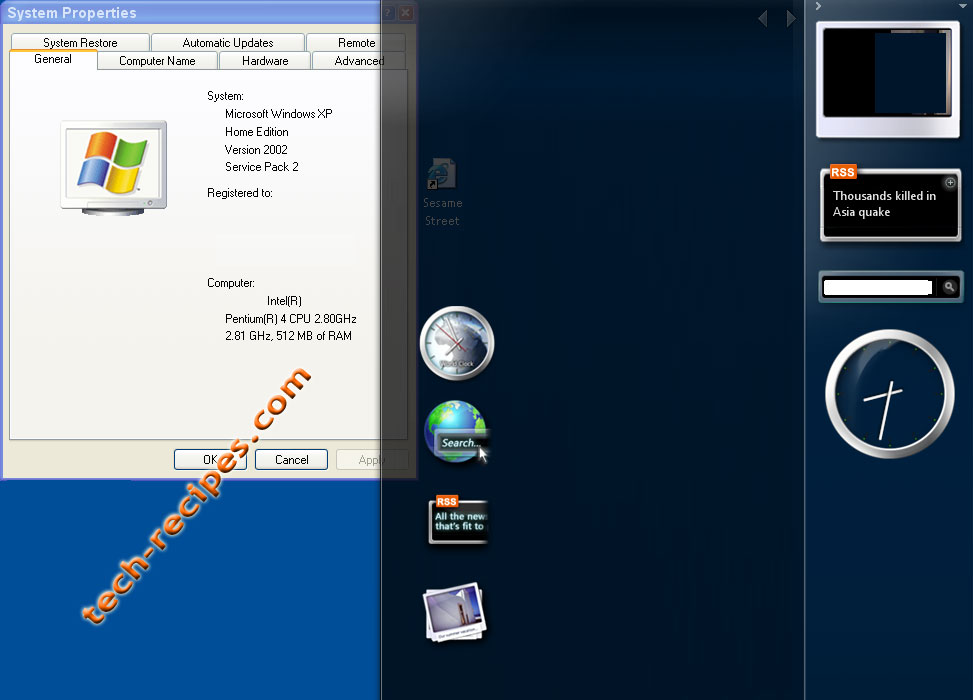
The Vista SidebarGo to AlexTheBeast's tutorial on how to Install the Vista/Longhorn Sidebar into XP and put that on your computer too.
And when you are done that you can start celebrating! In fact you can claim that you have Windows Vista already, and nobody will doubt you. One last step enjoy and don't forget to show-off your new look!
Take a look at these screenshots of how your PC will look once you are done. If I didn't put that System Properties window up there then I'm sure I could have fooled you too!
note: I haven't included a screenshot with the longhorn sidebar. If you want to view a screenshot of it then please go to
Go to AlexTheBeast's recipe.
Screenshots:

Things I used in these screenshots: The
YAFVC3 VS (and all the things included in the download, wallpaper from
Winmatrix and icons for recycle bin and my computer from modified version of explorer found in YAFVC theme (install modified explorer.exe > right click on desktop > properties > desktop tab > customize desktop > change icon > type in 'C:\WINDOWS\explorer.exe' > select icon > OK).